> ## Documentation Index
> Fetch the complete documentation index at: https://docs.spade.com/llms.txt
> Use this file to discover all available pages before exploring further.
# Integrating with Spade's API
***
## Authentication
Spade's APIs use secret API key authentication, because it is the fastest approach available for low latency applications.
Each of Spade's API environments requires a unique key which is passed in the `X-Api-Key` header:
```bash theme={null}
curl --request POST \
--url https://east.sandbox.spade.com/transactions/cards/enrich \
--header 'content-type: application/json' \
--header 'X-Api-Key: SPADE-API-KEY' \
--data '{ request }'
```
## Environments
Spade provides servers located on both the East and West Coast as well as both a Production and Sandbox environment for each geo-located server.
| | East | West |
| -------------- | -------------------------------- | -------------------------------- |
| **Sandbox** | `https://east.sandbox.spade.com` | `https://west.sandbox.spade.com` |
| **Production** | `https://east.api.spade.com` | `https://west.api.spade.com` |
Your development environments should use our sandbox endpoints and your production environment should hit our production endpoints.
Sandbox and Production environments do not share the same API keys, recurrence, and custom user generated categories and category personalization.
We have servers located on both the East and West Coasts and recommend calling the server closest to your server location to minimize latency.\
\
For best practices on reducing latency see our guide on [reducing latency](/reference/reducing-latency).
Counterparty and Location information is common across all environments. You can expect the same metadata to be returned for the same enrichment payload, regardless of environment.
### Supporting multiple data sources and clients
Note: This feature is not enabled by defaut. To access this feature please contact [sales@spade.com](mailto:sales@spade.com)
For clients that have multiple data sources or support other clients as an embedded service provider or reseller we support segmenting requests through use of a `billingProfile` and `organizationId` .
The `billingProfile` flag supports values of:
* `standard` - typically used for segmenting different data sources
* `resell` - used for segmenting different clients
In addition to the `billingProfile` you'll want to specify an `organizationId` that aligns to the data source or client associated with the request you're sending to us. Below is an example of how this information is provided in a card enrichment request:
```json Reseller example {2,3} theme={null}
{
"billingProfile": "resell",
"organizationId": "ClientABC",
"userId": "12345",
"cardId": "card_5678",
"programId": "program_123",
"transactionId": "txn-1234",
"merchantName": "JOE'S PIZZA",
"amount": 18.35,
"currencyCode": "USD",
"categoryCode": "4814",
"categoryType": "MCC",
"city": "New York",
"state": "NY",
"country": "USA",
"occurredAt": "2025-08-15T18:27:51.000Z"
}
```
## Enrich your first transaction
## Configuration
You can create a fork of Spade's Postman collection by clicking [this link](https://app.getpostman.com/run-collection/45578594-3ac97973-91ba-4d95-ad07-c058a347bddc?action=collection%2Ffork\&source=rip_markdown\&collection-url=entityId%3D45578594-3ac97973-91ba-4d95-ad07-c058a347bddc%26entityType%3Dcollection%26workspaceId%3D7489b801-6d27-43ad-8815-39195c96483e)
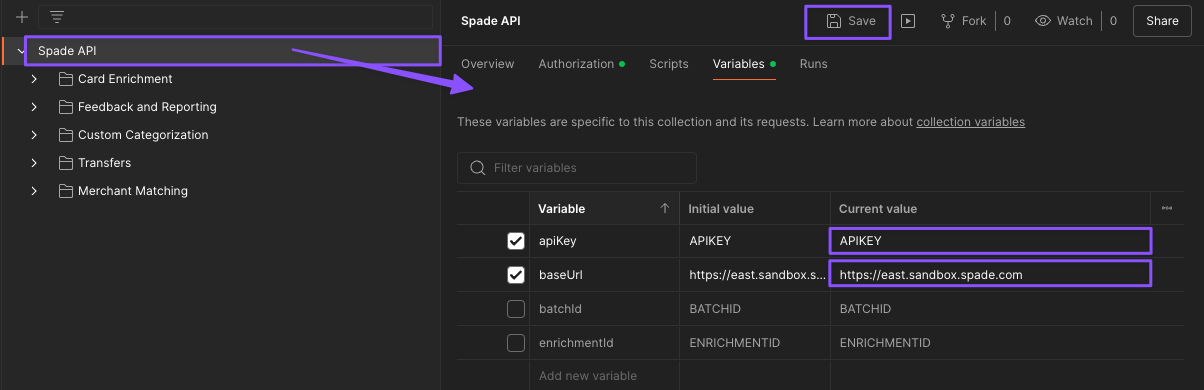
First you'll want to ensure you update the collection with your correct API Key and environment URL by entering them in the corresponding current value fields and clicking 'Save.'
 ## Make the Postman request
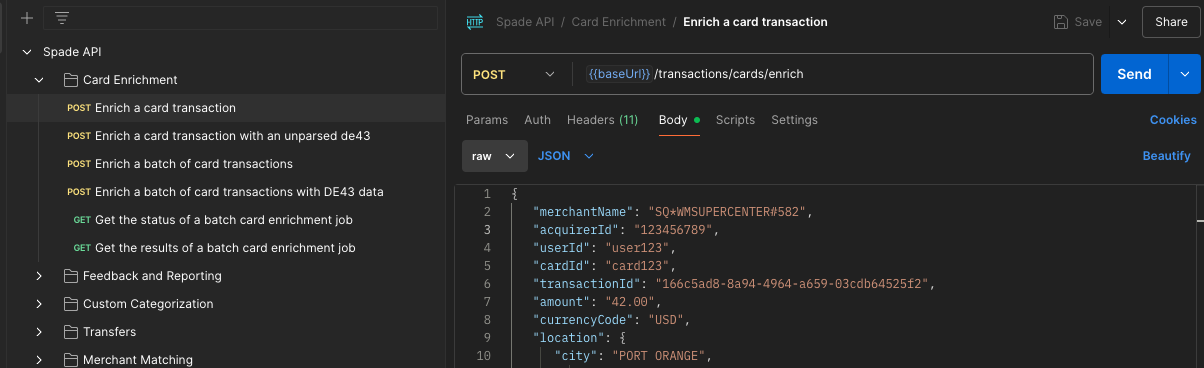
The postman collection includes this test transaction we've provided, so all you need to do is click Send!
## Make the Postman request
The postman collection includes this test transaction we've provided, so all you need to do is click Send!
 Copy the example request below and replace SPADE-API-KEY with your environment specific credential in your terminal of choice (we like [Warp](https://www.warp.dev/)!)
```bash theme={null}
curl --location 'https://east.sandbox.spade.com/transactions/cards/enrich' \
--header 'Content-Type: application/json' \
--header 'Accept: application/json' \
--header 'X-Api-Key: SPADE-API-KEY' \
--data '{
"merchantName": "SQ*WMSUPERCENTER#582",
"acquirerId": "123456789",
"userId": "user123",
"cardId": "card123",
"programId": "program123",
"transactionId": "166c5ad8-8a94-4964-a659-03cdb64525f2",
"amount": "42.00",
"currencyCode": "USD",
"location": {
"city": "PORT ORANGE",
"region": "FLORIDA",
"country": "US"
},
"occurredAt": "2025-06-05T1:42:00Z",
"categoryCode": "5469",
"categoryType": "MCC"
}'
```
Congratulations on enriching your first transaction! We recommend checking out our [**Enrichment guides**](/reference/enrichment-guides) to get started sending your own data.
Copy the example request below and replace SPADE-API-KEY with your environment specific credential in your terminal of choice (we like [Warp](https://www.warp.dev/)!)
```bash theme={null}
curl --location 'https://east.sandbox.spade.com/transactions/cards/enrich' \
--header 'Content-Type: application/json' \
--header 'Accept: application/json' \
--header 'X-Api-Key: SPADE-API-KEY' \
--data '{
"merchantName": "SQ*WMSUPERCENTER#582",
"acquirerId": "123456789",
"userId": "user123",
"cardId": "card123",
"programId": "program123",
"transactionId": "166c5ad8-8a94-4964-a659-03cdb64525f2",
"amount": "42.00",
"currencyCode": "USD",
"location": {
"city": "PORT ORANGE",
"region": "FLORIDA",
"country": "US"
},
"occurredAt": "2025-06-05T1:42:00Z",
"categoryCode": "5469",
"categoryType": "MCC"
}'
```
Congratulations on enriching your first transaction! We recommend checking out our [**Enrichment guides**](/reference/enrichment-guides) to get started sending your own data.