

Overview
Merchant-locked cards restrict spending to a predefined set of merchants — useful for corporate expense cards, benefits/stipend cards, and fleet cards. Spade handles the hard part: identifying which merchant a transaction belongs to and returning an allow or block recommendation in real time. Your system registers the allowed merchants with Spade, and Spade tells you whether each incoming transaction should be approved or denied.Merchant-locked cards require the action triggers feature. Contact your Spade
representative if you need access.
How it works
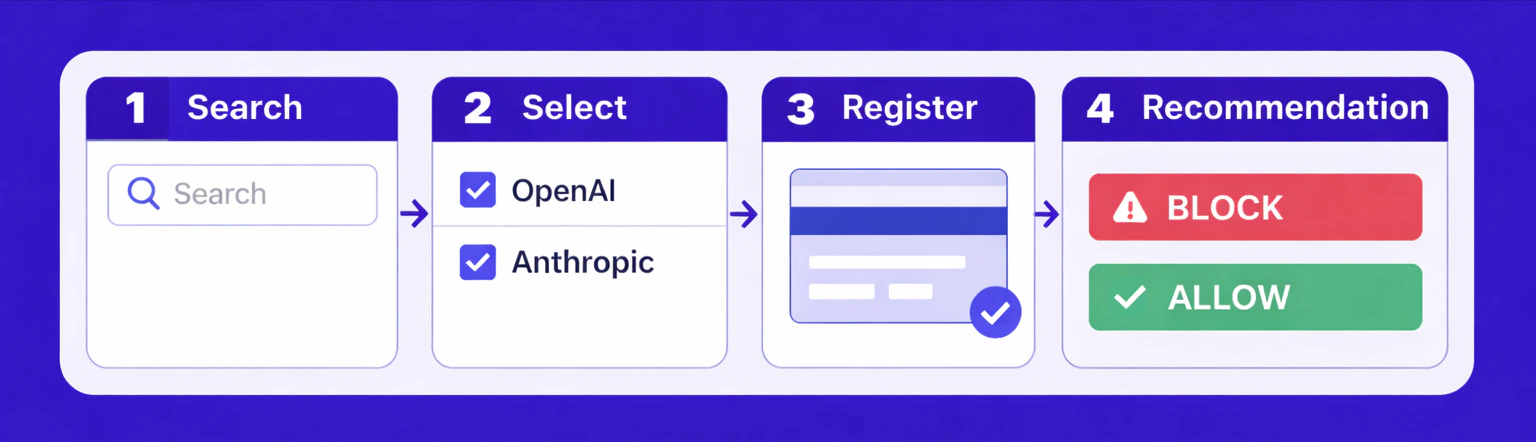
- Search — Query Spade’s merchant database for autocomplete results
- Select — The user picks one or more merchants
- Register — Send selected merchants to Spade as
ALLOW_ONLYaction triggers - Receive — Spade returns an
authRecommendationwith each enrichment
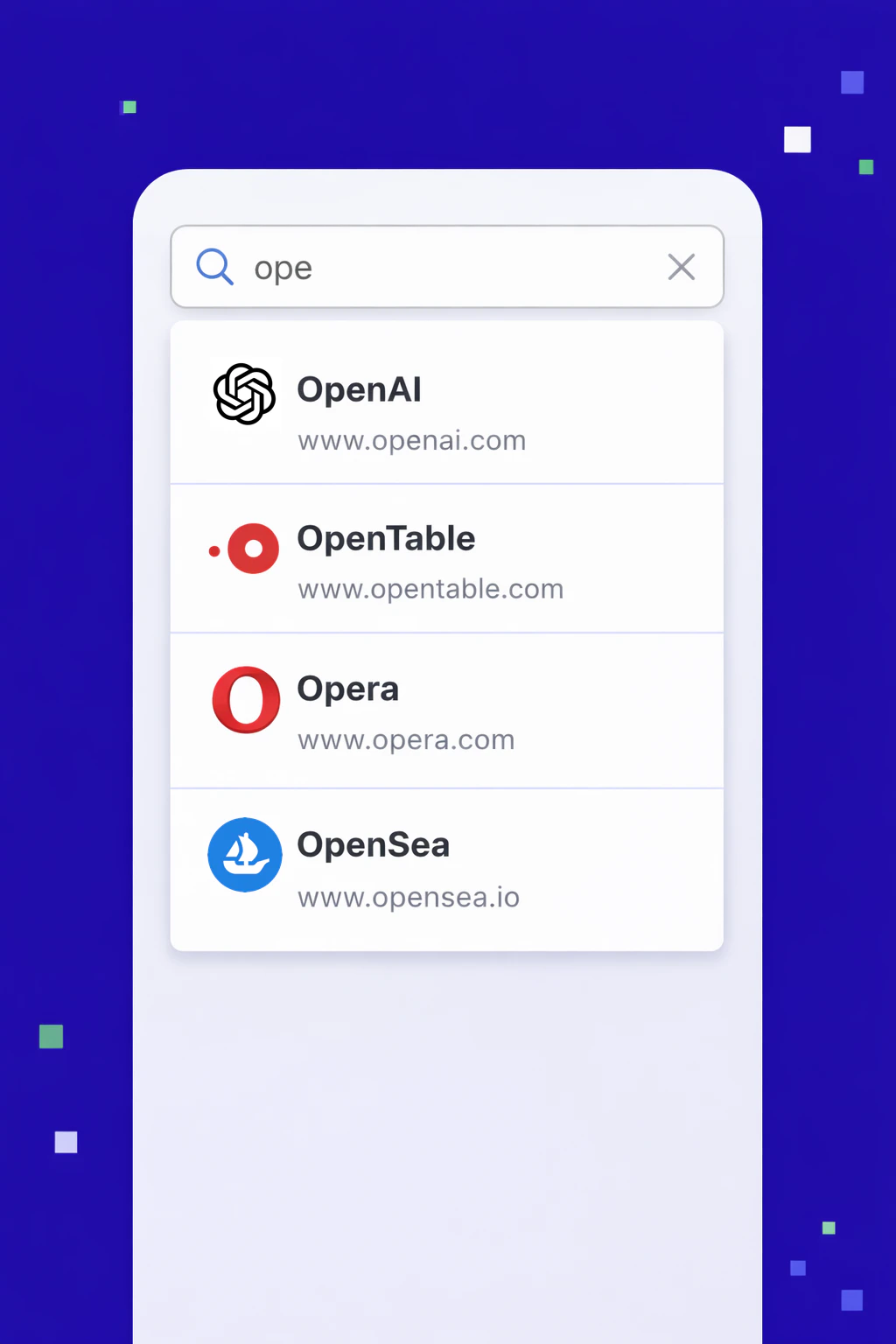
Step 1: Search Spade’s merchant database
UseGET /corporations to power a merchant autocomplete widget. The endpoint returns the merchant name, logo, website, and categoryHierarchy for each match.
Step 2: Select merchants
The user or admin selects one or more merchants from the search results. Thename and website from Step 1 are all you need for the next step.
Step 3: Register allowed merchants
Send the selected merchants to Spade using the card-scoped action triggers endpoint. Set each merchant’s action type toALLOW_ONLY so that only transactions at these merchants are recommended for approval.
Step 4: Receive auth recommendations
When a transaction is enriched, Spade checks it against the registered triggers and returns anauthRecommendation inside the action object.
Matched merchant — ALLOW
Transaction at a locked merchant (e.g., OpenAI):
Unmatched merchant — BLOCK
Transaction at any other merchant (e.g., Gemini):
Spade returns a recommendation, not an enforcement decision. Your system
is responsible for approving or declining the transaction based on the
authRecommendation value.Use cases
- Corporate expense cards — Lock cards to approved vendors so employees can only spend at authorized merchants
- Benefits and stipend cards — Restrict wellness, meal, or commuter cards to relevant merchants
- Fleet cards — Limit fuel cards to gas stations and approved service providers